Master Payments on Claro: A complete guide to paying bills and using Claro payments PSE

The Claro payments tool offers users two options: access the Claro Payments online portal or download the Claro Pay application. If you are a Claro customer, you will be able to pay the bill for your services with the company, as well as buy packages and make recharges through the web portal.
If, on the other hand, you want to make payments that do not belong to Claro services, you can use the Claro Pay application available on all smart mobile devices. Either way, it might be helpful to have an invoice receipt template in hand. So keep that in mind.
Below we explain how to use both tools.
You may also read: Subsidies of the Colombia Mayor Program are already being delivered: steps to claim them, last days to go
Claro Pay: payments on Claro from your phone
This is a tool that joins the trend of digital payments. The Claro Payments tool allows users to make payments, purchases and recharges from their mobile device through the Claro Pay application.
This is an option that has grown in popularity due to the benefits it offers.
On the one hand, this tool represents a safe and easy-to-use alternative that allows users to make investments and savings, receive funds and even enjoy benefits such as cashback on bill payments.
It is also presented as a simple option to complete payments through Claro, without being limited to the company’s products and services.
On the other hand, this digital wallet allows its users to complete the payment of utility bills, save funds, transfer money to friends or contacts, and make payments for goods and services offered by associated businesses.
In turn, the associated businesses receive the money quickly, securely and reliably through an electronic platform provided by the company.
How to pay your bills from Claro Pay: step by step
The Claro Pay platform allows users to pay outstanding bills and gives 1% cashback for this type of transactions. So for app users, each utility bill payment guarantees 1% cashback.
Download and sign up for the Claro Payments app
- To make payments on Claro Pay, the first thing you need to do is download the app, which is available on all phone operating systems.

- Once the application is downloaded, you must register to create an account with your phone number and other personal information.

- To complete the registration process, the user must create a password in the Claro pagos application.

You may also be interested in: Icetex bill will finally be easy to understand: entity announces invoice changes
How to pay Claro and utility bills
- Open the application on your mobile device and select the ‘pay bills’ option.

- The screen will show you a series of payment options in Claro to choose which type of bill you wish to pay (water, energy, television, gas, telephone, social security, etc.). Select the appropriate option.

- After selecting the type of invoice you wish to pay, the application will prompt you for more information, such as company name, payment reference and method.

If the selected payment method is PSE, you must specify whether you are a ‘Natural Person’ or ‘Legal Person’, and select the bank from which the funds will be sent. Once this information is verified, the payment will be made successfully.
How to pay with Claro Pay at allied merchants?
To make payments at Claro Pay partner merchants, users can use the QR code. Follow the instructions below to make purchases and payments in Claro Pay with the QR.
- Open the application and select the ‘Pay’ option at the bottom of the screen.
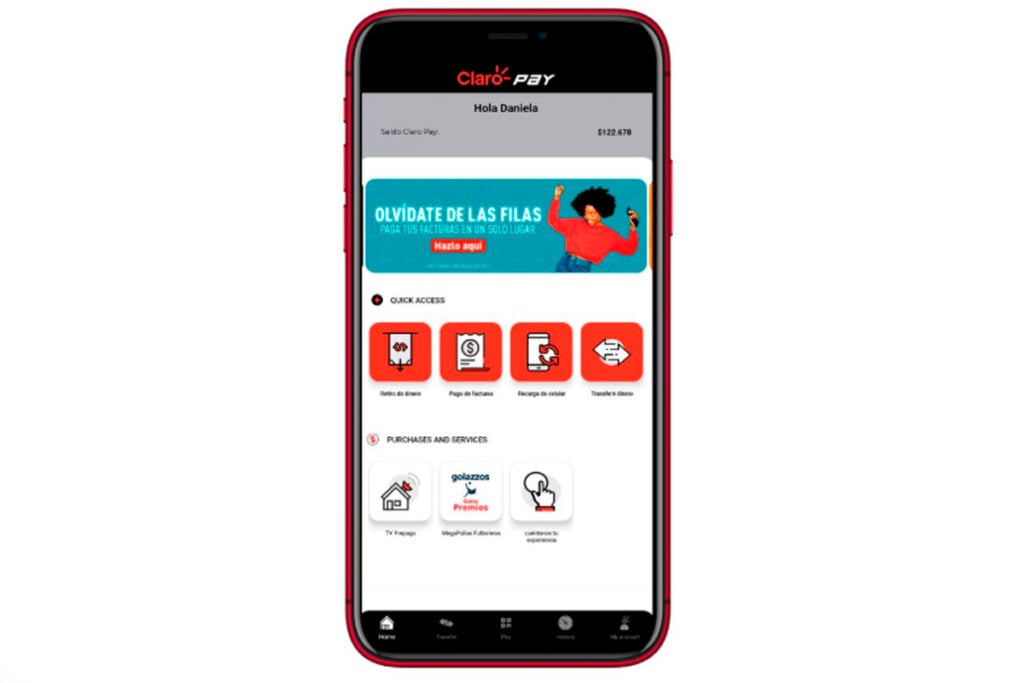
- Press the scanner icon and use the camera to scan the vendor’s QR code.

- Select the payment method and enter the requested information. Once the information is verified the payment will be completed and the seller will receive the amount quickly and securely.

Benefits of Claro Pay
The Claro Pay application not only allows payments to be made at Claro, but also offers multiple benefits, including cashback for bill payments, additional gigabytes in recharges to Claro customers’ lines and +25,000 authorized points to send and receive money.
All the information regarding these and other benefits is available at this link.
Claro’s payment and recharge portal
This interface was created to make it easier for Claro customers to make transactions for their products and services. In this way, the portal allows Claro users to pay their bills, make recharges and even buy packages online.
The user can enter the web portal and find in one place a wide range of options to complete payments in Claro. Here’s how to use it.
Step by step to use the Claro payment web portal
To complete payments in Claro you must enter the official site of the portal and select the type of payment you want to make, as well as the payment method.
- Go to portalpagos.claro.com.co
Once logged in, the portal will show you a box where you can select the service you wish to pay for.

- Select the service you wish to pay for.
When you click on the ‘select the option you are interested in’ box, a series of options will be displayed from which you can choose the most appropriate one. Click on the desired option and press the ‘Continue’ button.

- For example, in case you select the option ‘Bill payment’, the portal will offer you options that correspond to the different Claro services.
There you must choose the desired option and continue with the process to select the payment method. Please note that to continue you must include the reference number, then you will be able to select the payment method.

These payment methods arise with the purpose of streamlining payments, in an easy and secure way, compared to traditional methods in which it was necessary to go to the banks or to the payment points to wait in long lines in front of a teller window.
Thus, this type of platforms encourage users to participate in the growing trend of digital payments.
Keep reading: Exceeding speed limits and driving without a pass or with a drink could land you in jail: controversial bill